Display & Buttons
MyStation-Go has 3 buttons on the side of the device. This page explains how to control the device with them — and what each display mode shows. Each display mode below describes what you see and what the buttons do while you are in that mode.
Button Overview
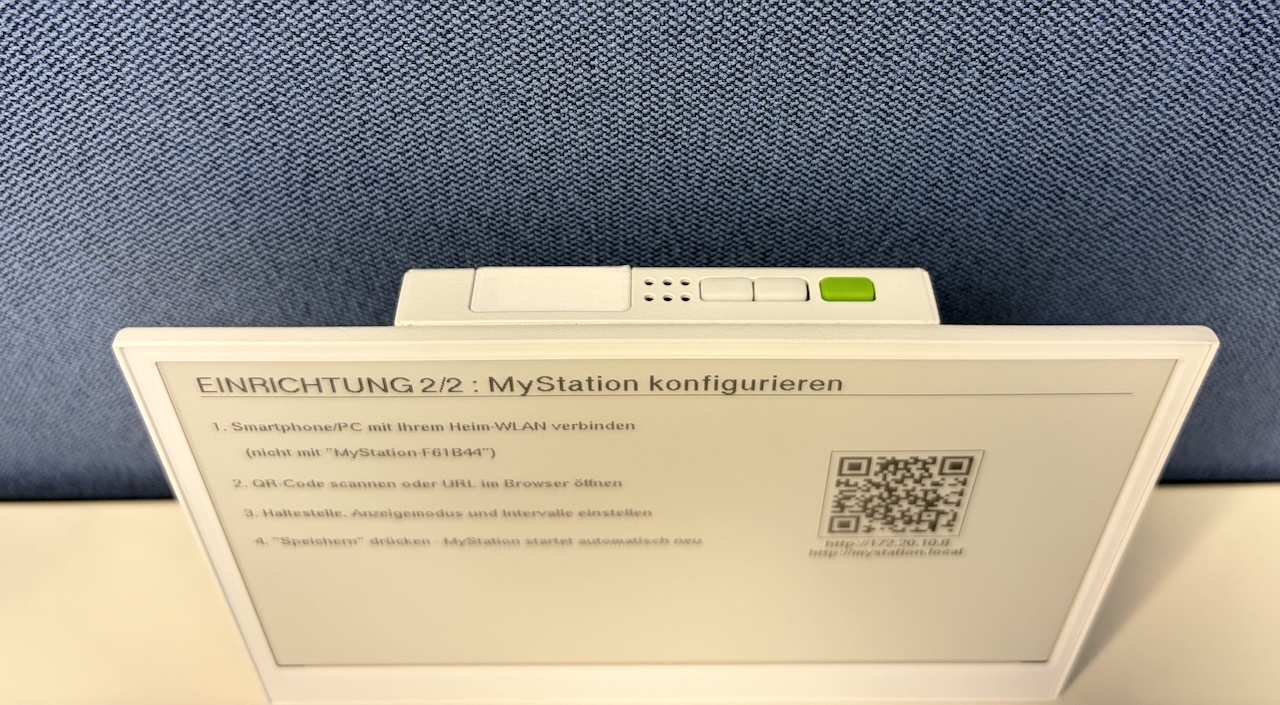
💡 The buttons are on the top edge. There is one green button and two white buttons. Facing the display, the left white button and the right white button sit next to the green one. This guide refers to them by colour so you don't have to remember numbers.
💡 A quick tap switches or browses the view and is temporary — after 2 minutes the display returns to your configured mode. Holding a button for 5 seconds is always a system action and works the same in every mode (see System Actions).
Display Modes
MyStation-Go offers three display modes, each optimized for different needs:
- Half & Half — weather and departures split view
- Weather Only — full-screen weather information
- Departures Only — full-screen transport departures
Half & Half (Default)
Variant A — Weather + Departure board
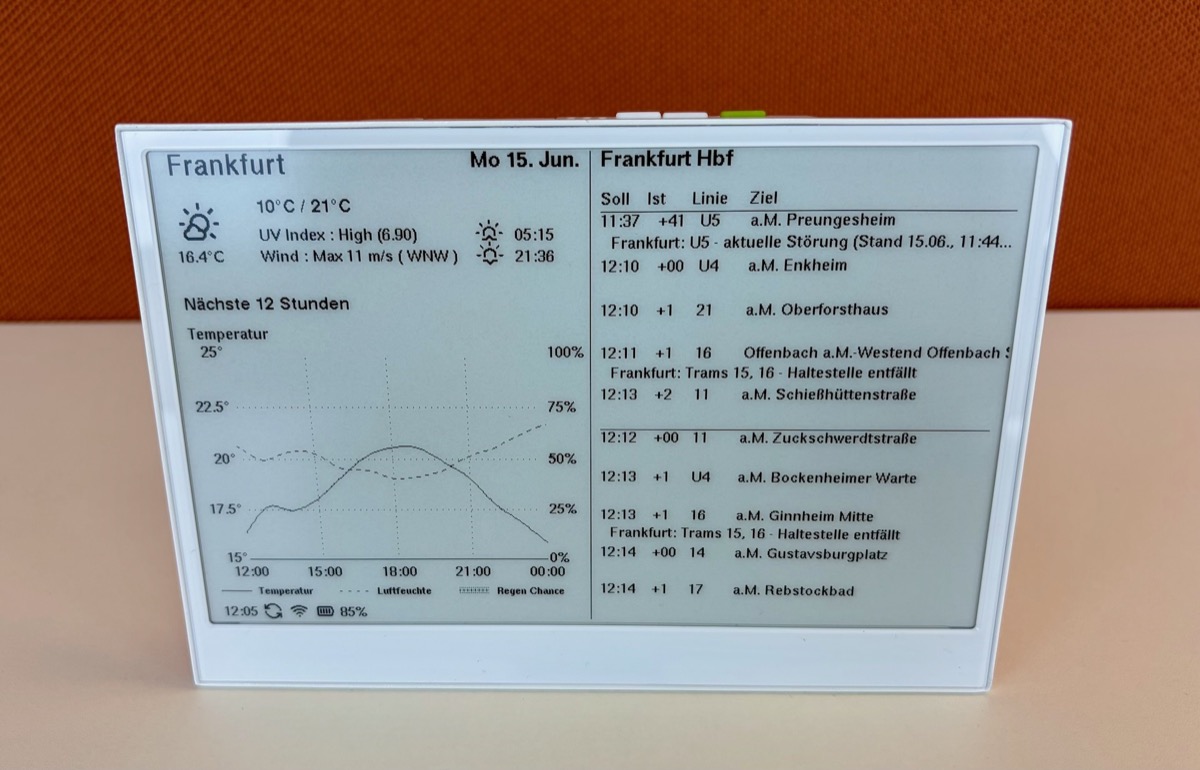
Variant B — Weather + Connection board (a specific route to your destination)
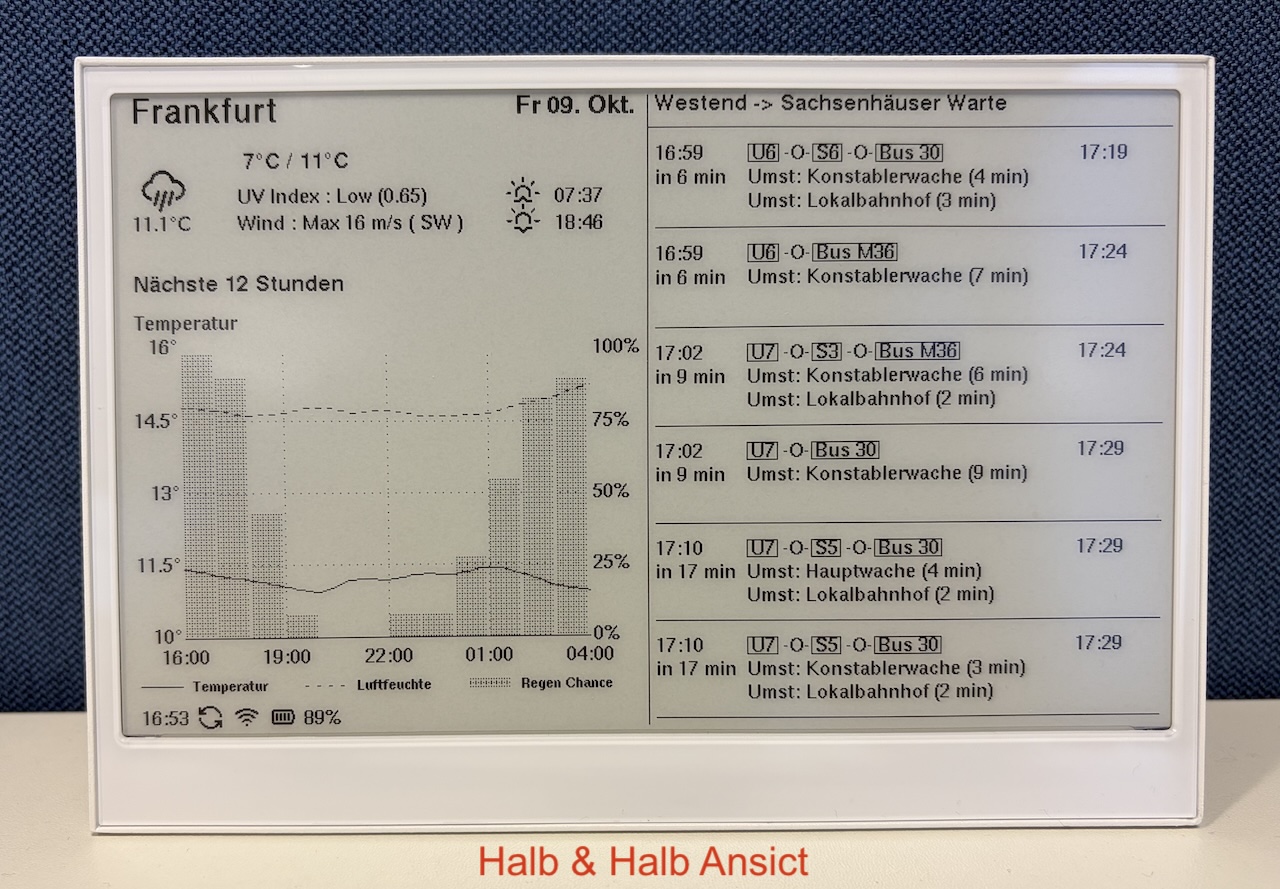
💡 Which variant you see depends on whether you selected Departures or Connections in the transport settings.
Buttons in this mode
A brief press temporarily switches the view (2 minutes, then it returns to your configured mode).
| Button | Brief press | Result |
|---|---|---|
| the green button | 👆 tap | Half & Half view (weather + departures) |
| the right white button | 👆 tap | Weather full screen |
| the left white button | 👆 tap | Departure full screen |
💡 Browse the weather forecast from Half & Half. First tap the right white button to show the weather full screen, then use the buttons below. (Solar Sonnenstrom browsing is only available in Weather Only mode.)
| Step | Button | Brief press | Result |
|---|---|---|---|
| 1 | the right white button | 👆 tap | Weather full screen |
| 2 | the right white button again | 👆 tap | Open the multi-day weather forecast |
| then | the right white button | 👆 tap | Next day |
| then | the left white button | 👆 tap | Previous day |
| exit | the green button | 👆 tap | Back to your Half & Half view |
What you see
Top Section (Weather):
- Current temperature
- "Feels like" temperature
- Weather icon
- Weather description
- 12-hour temperature forecast graph
Bottom Section (Departures):
- Transport type icon (🚂 RE, 🚊 S-Bahn, 🚌 Bus)
- Line number/name
- Destination
- Platform/track number
- Departure time or delay
Footer:
- Battery level (ESP32-S3 only)
- WiFi status
- Last update timestamp
Weather Only
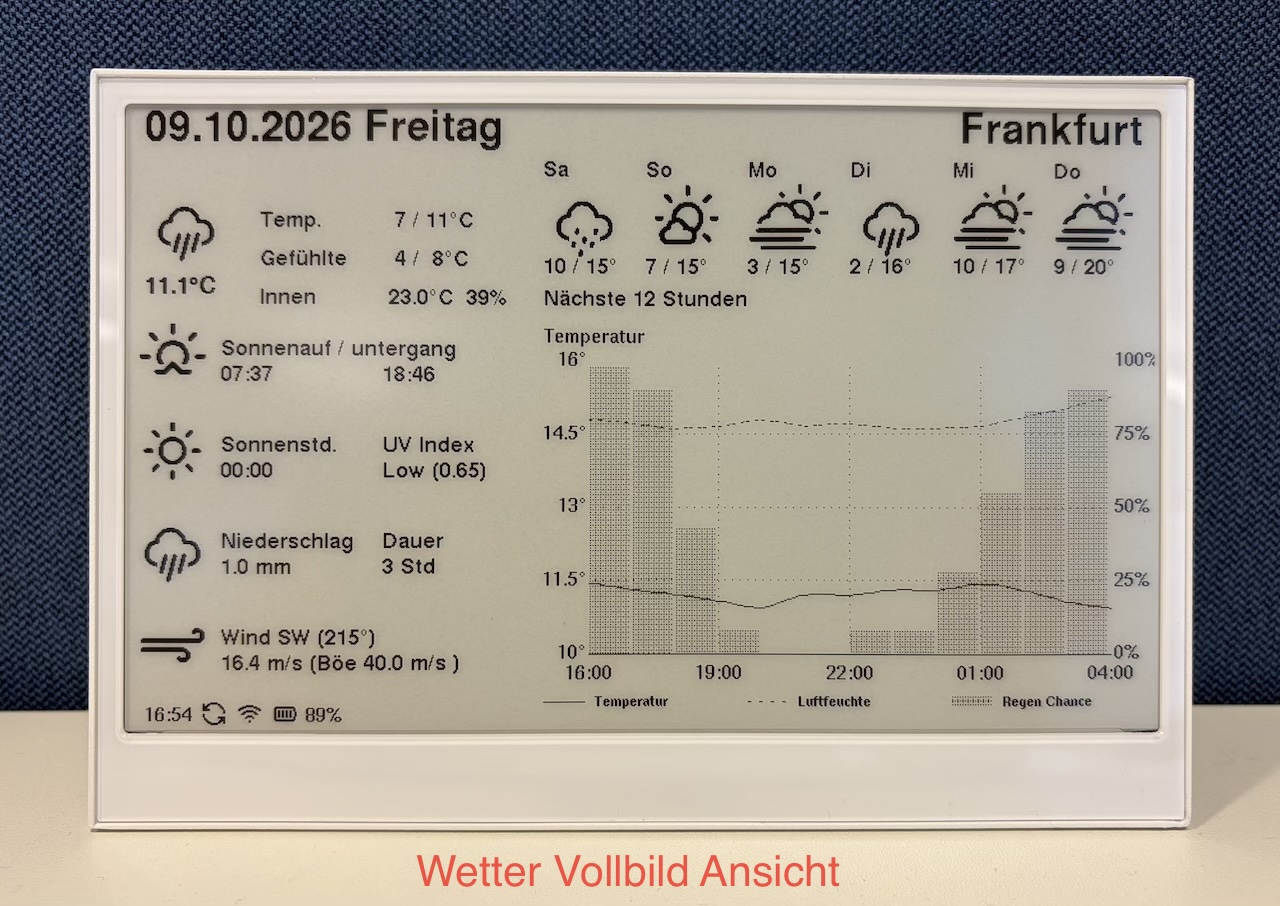
Buttons in this mode
In Weather Only mode the buttons browse the forecast instead of switching modes. Their meaning depends on whether you are already browsing.
From today's view (not browsing yet):
| Button | Brief press | Result |
|---|---|---|
| the green button | 👆 tap | Stay on today's weather |
| the right white button | 👆 tap | Open weather forecast (starts tomorrow) |
| the left white button | 👆 tap | Open Sonnenstrom solar view (starts today) |
While browsing (weather forecast or Sonnenstrom):
| Button | Brief press | Result |
|---|---|---|
| the green button | 👆 tap | Back to the weather full screen (today) |
| the right white button | 👆 tap | Next day |
| the left white button | 👆 tap | Previous day |
💡 While browsing, the right white button and the left white button only move between days. To switch between the weather forecast and Sonnenstrom, press the green button first (back to today), then the right white button (weather) or the left white button (Sonnenstrom).
What you see
Main Area:
- Large weather icon
- Weather description
- Current temperature
- "Feels like" temperature
- Room temperature
- Room humidity
- Temperature graph (12-hour forecast)
Additional Details:
- Sunrise and sunset times
- Humidity percentage
- Wind speed and direction
- Precipitation probability
- Cloud coverage
Best For:
- Weather planning
- Outdoor activities
- Daily weather overview
Day Forecast View
When the display is in Weather Only mode, you can browse the weather forecast for upcoming days using the buttons. Press the right white button to go forward one day, the left white button to go back, and the green button to return to the weather full screen mode (today's weather).
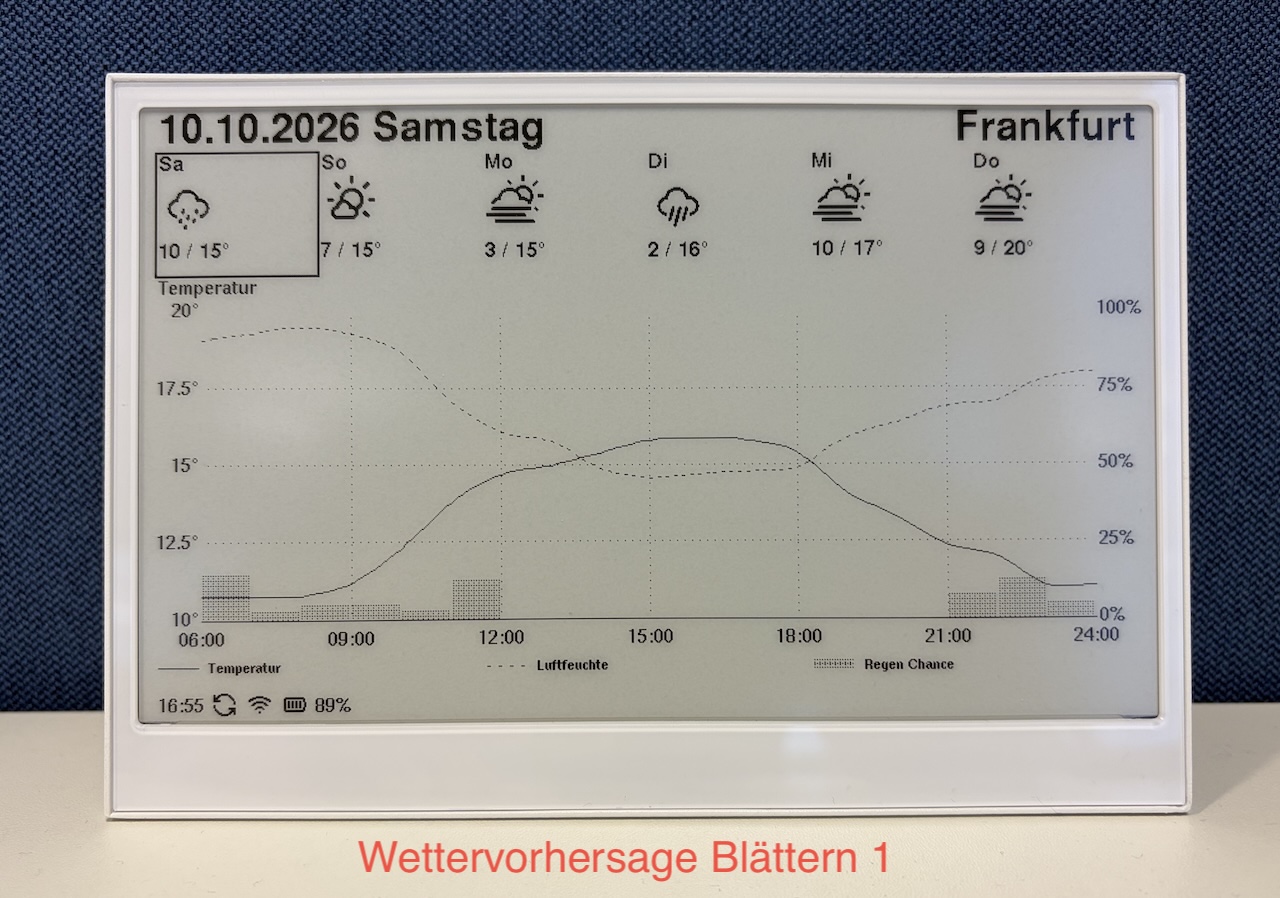
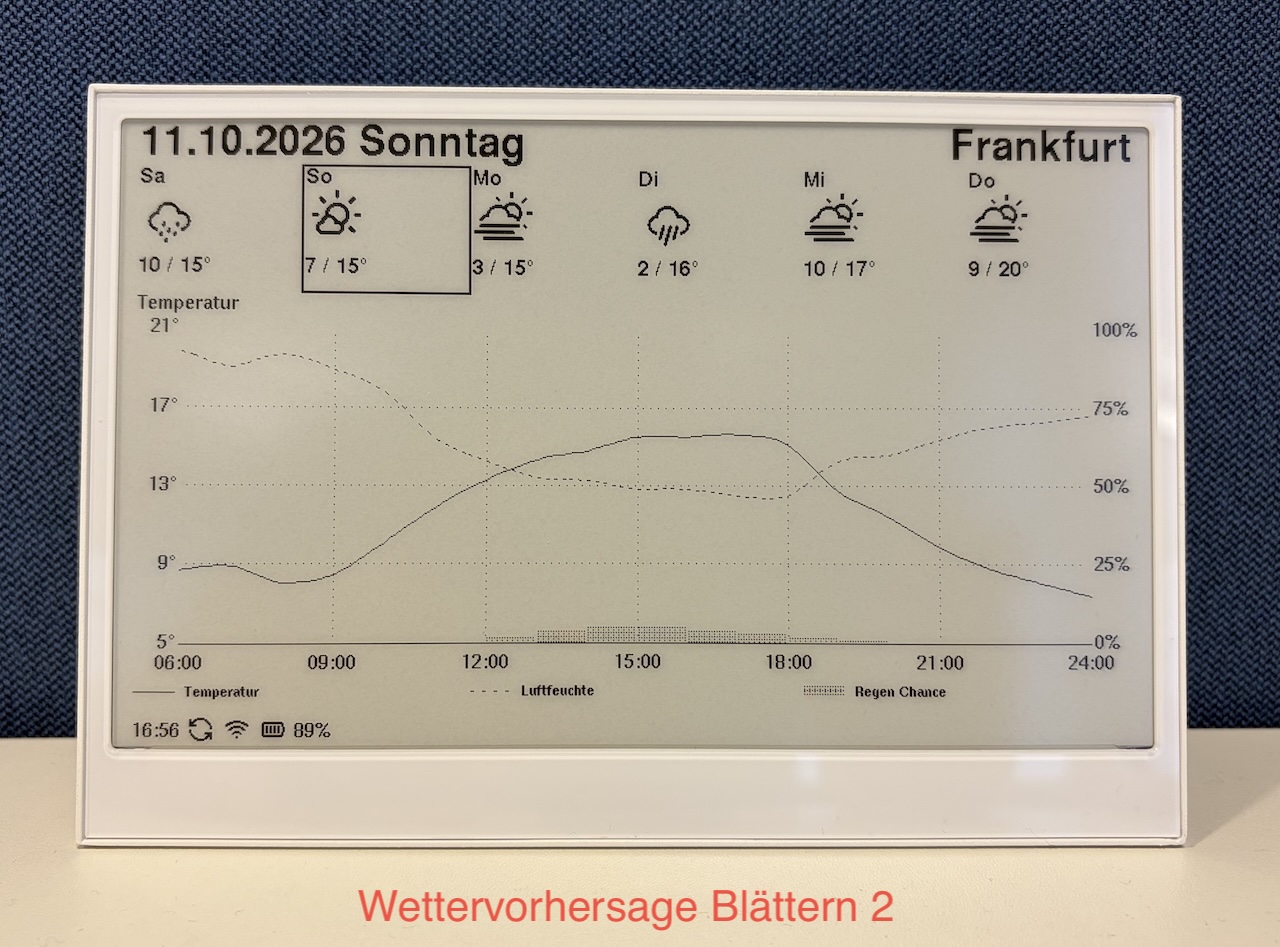
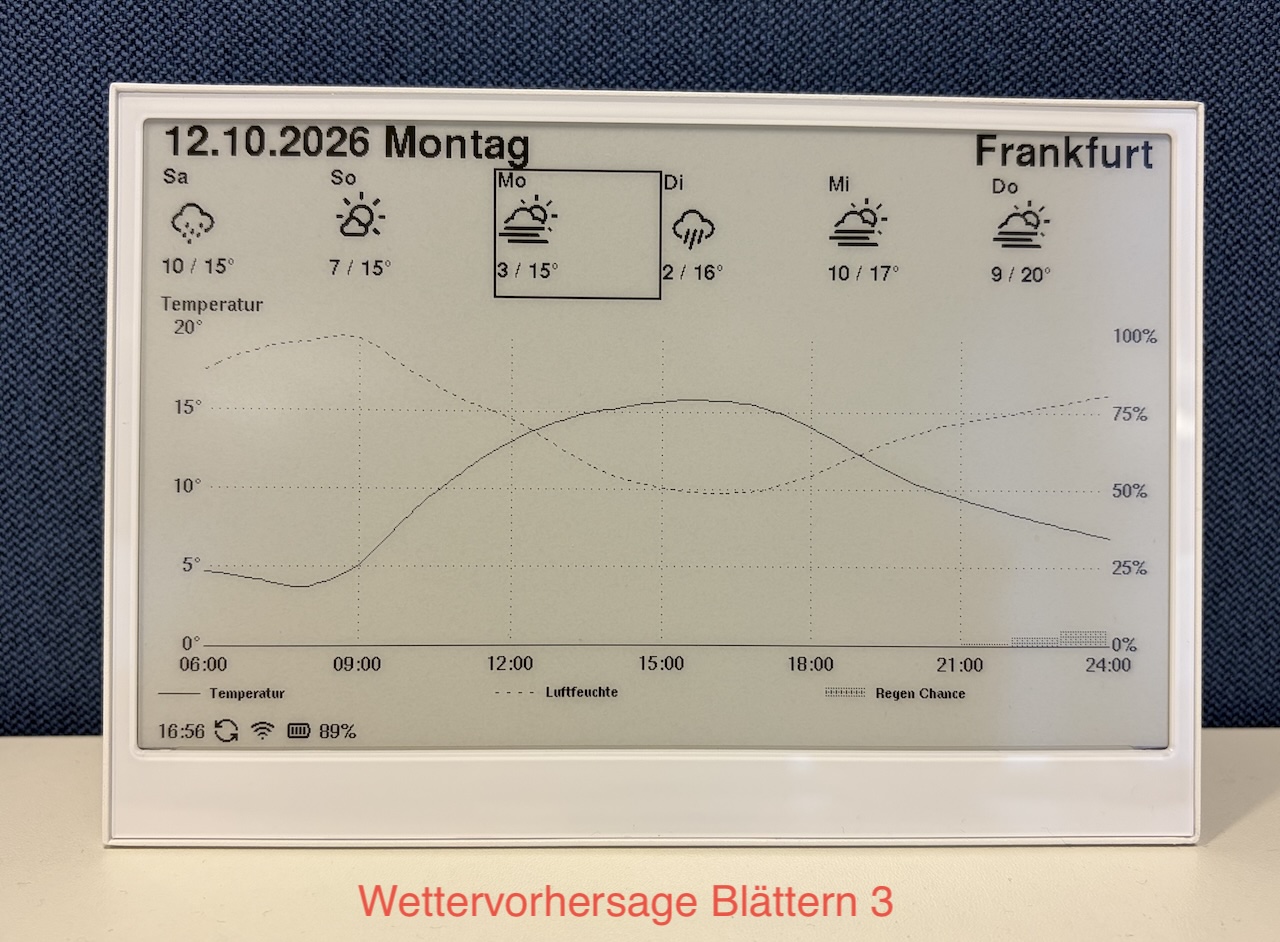
What you see:
- Header: Date of the selected day and city name
- Day overview row: 6 forecast days shown as small previews, with the selected day highlighted
- Graph: Full-width temperature and precipitation graph from 06:00 to midnight (00:00)
The display returns to today's weather automatically after 2 minutes without a button press.
💡 The number of available forecast days depends on the weather model selected in your settings. Some models provide fewer days than others.
Solar Radiation View (Sonnenstrom)
When the display is in Weather Only mode, press the left white button from today's weather to open the Sonnenstrom view — a solar radiation forecast that shows how strong the sunshine is across the day. It starts with today; while browsing, the right white button goes to the next day, the left white button the previous day, and the green button returns to the weather full screen mode (today's weather).
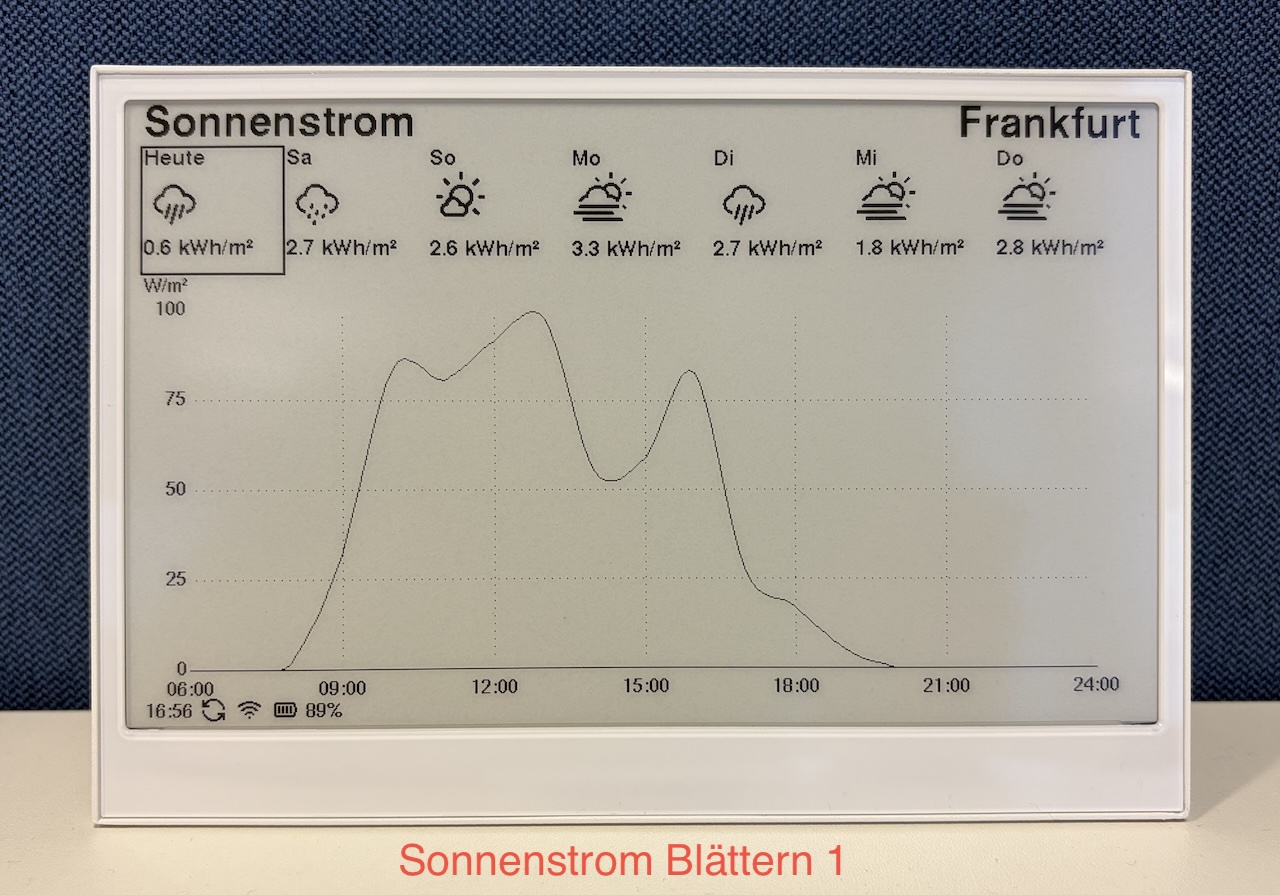
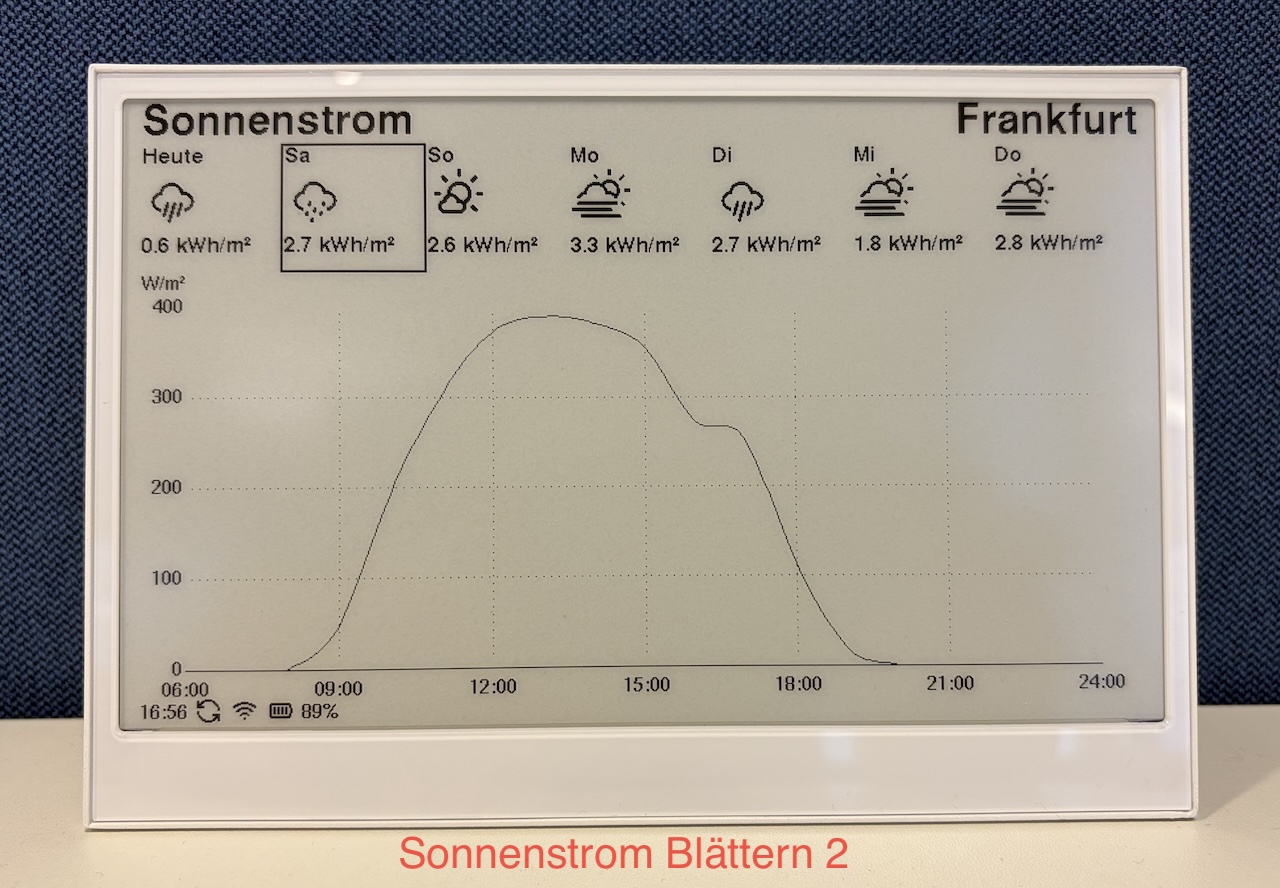
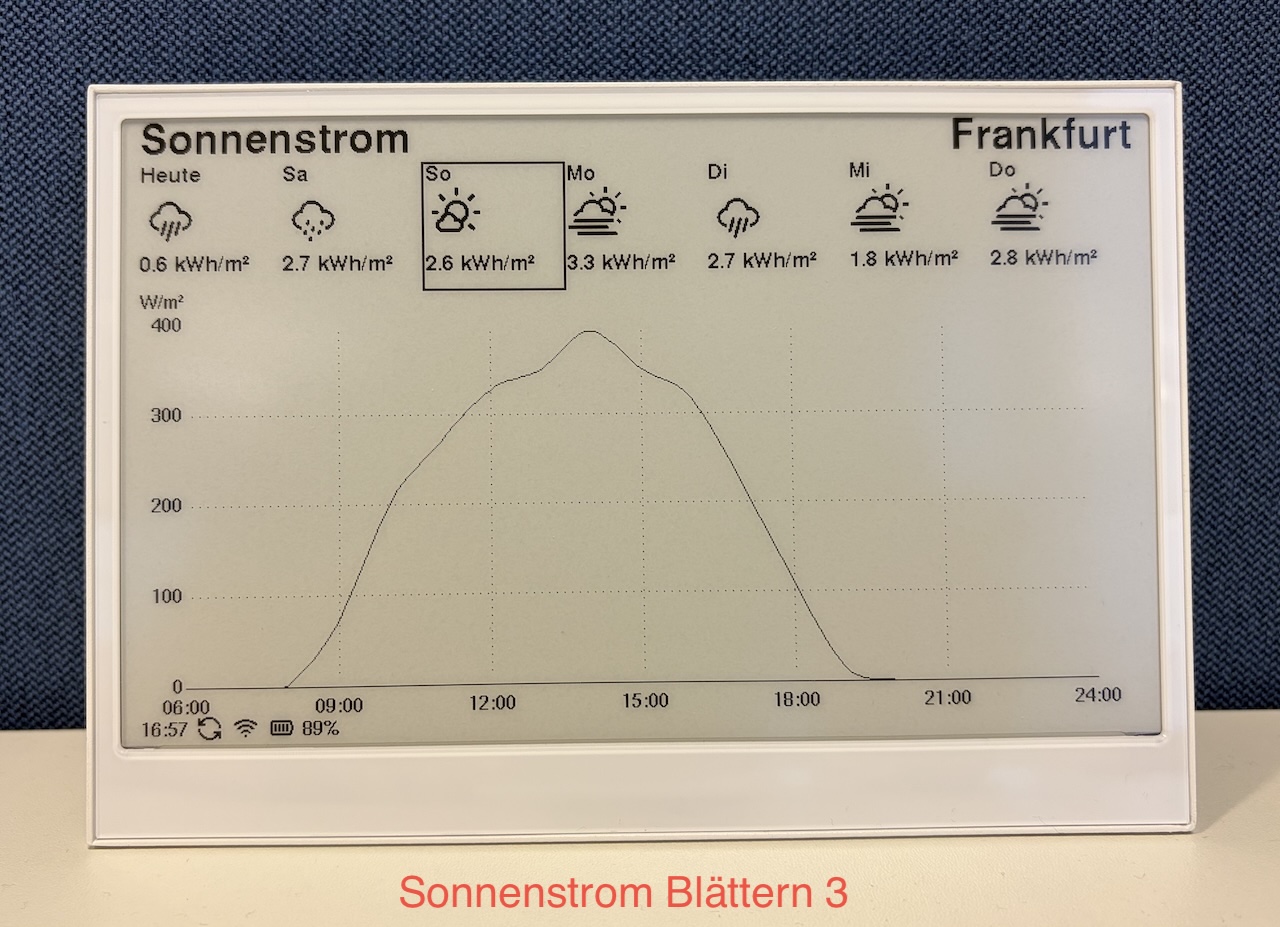
What you see:
- Header: "Sonnenstrom" and your city name
- Day overview row: 7 days including today ("Heute"), each showing that day's total sun energy in kWh/m² — handy for comparing which days are sunniest
- Graph: A sunshine-strength curve for the selected day. The peak of the curve is when the sun is strongest — the best time for solar generation. The graph auto-scales each day (axis in W/m²).
This is useful if you have solar panels or a Balkonkraftwerk: the curve tells you when your panels will produce the most, and the daily totals let you compare days.
The display returns to today's weather automatically after 2 minutes without a button press.
💡 To switch between the weather forecast and Sonnenstrom while browsing, press the green button first (back to today), then the right white button (weather) or the left white button (Sonnenstrom). If a day has no solar data from your weather model, it falls back to the normal temperature/rain forecast.
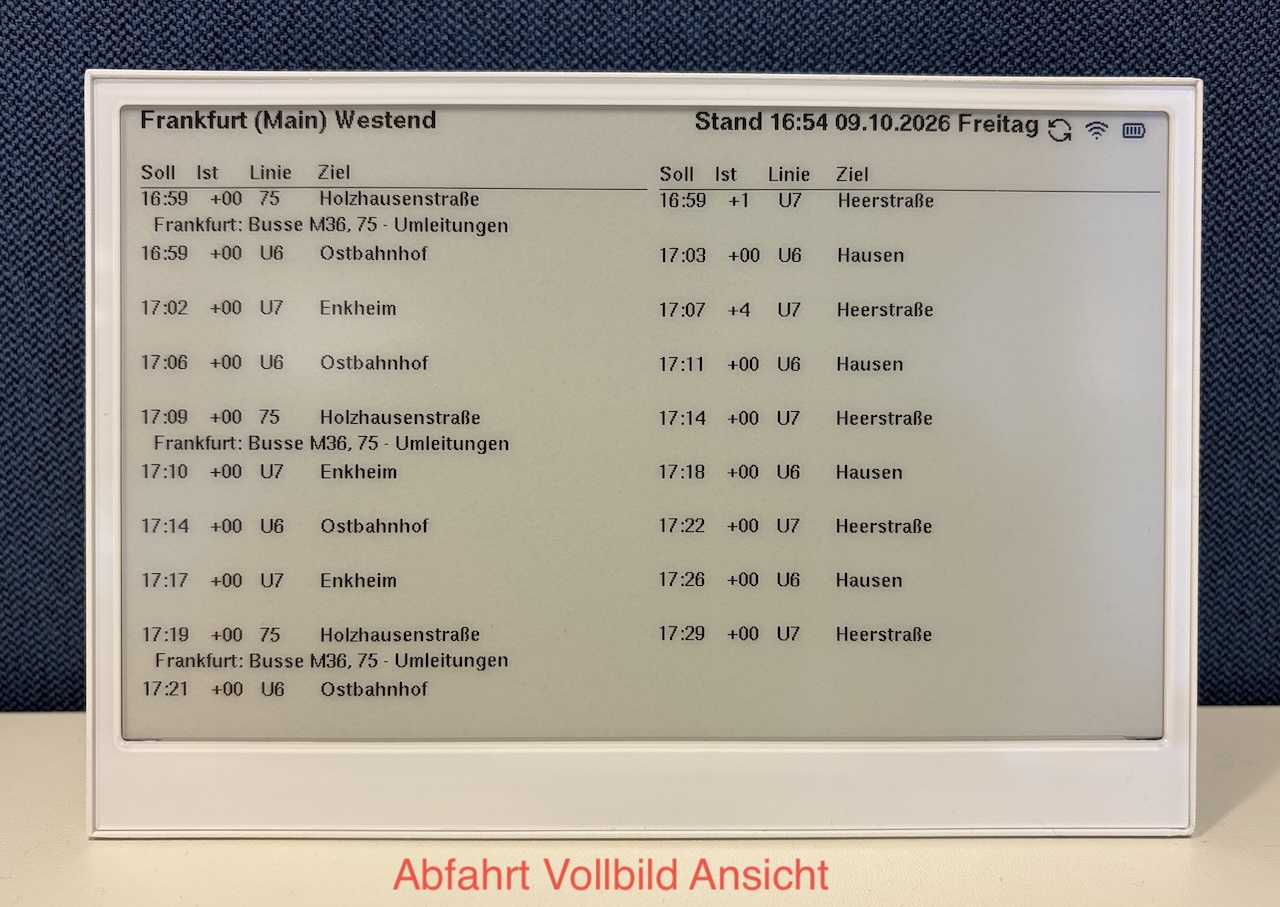
Departures Only
Buttons in this mode
A brief press temporarily switches the view (2 minutes, then it returns to your configured mode).
| Button | Brief press | Result |
|---|---|---|
| the green button | 👆 tap | Departure board |
| the right white button | 👆 tap | Weather full screen |
| the left white button | 👆 tap | Departure board |
💡 Browse the weather forecast from the departure board. First tap the right white button to show the weather full screen, then use the buttons below. (Solar Sonnenstrom browsing is only available in Weather Only mode.)
| Step | Button | Brief press | Result |
|---|---|---|---|
| 1 | the right white button | 👆 tap | Weather full screen |
| 2 | the right white button again | 👆 tap | Open the multi-day weather forecast |
| then | the right white button | 👆 tap | Next day |
| then | the left white button | 👆 tap | Previous day |
| exit | the green button | 👆 tap | Back to the departure board |
What you see
For Each Departure:
- Transport type icon
- Line number or name
- Final destination
- Key intermediate stops (via)
- Platform or track number
- Departure time
- Delay information (if any)
Transport Types:
- 🚂 RE - Regional Express
- 🚊 S - S-Bahn (suburban rail)
- 🚆 RB - Regional train
- 🚌 Bus - Local bus
- 🚎 Tram - Tram/Streetcar
- 🚇 U - U-Bahn (metro)
Time Display:
- Zeit column — the actual departure time (e.g. "14:35"). If the vehicle reports no real-time data, the scheduled time is shown with a * marker.
- In column — minutes until departure (e.g. "7'"). Left blank for departures more than 99 minutes away.
Best For:
- Commuting
- Planning trips
- Checking multiple connections
Temporary Mode Behavior
When you briefly press a button (the green, right white, or left white button), the new mode is temporary:
- Duration: 2 minutes
- After 2 minutes, the display returns to the configured display mode
- The temporary mode is indicated on the display
This lets you quickly check weather or departures without permanently changing the configuration.
System Actions (Hold 5 seconds)
Holding a button for 5 seconds is always a system action and works the same in every display mode.
| Buttons | Hold 5 sec | Result |
|---|---|---|
| the green button | ⏱️ 5 sec | Enter Configuration Mode |
| the right white button | ⏱️ 5 sec | Show Device Information |
| the left white button | ⏱️ 5 sec | Trigger Software Update |
| the green + right white buttons | ⏱️ 5 sec | Factory Reset (clears all) |
Change my stop, location, or settings — hold the green button
MyStation-Go enters Configuration Mode:
- The display shows the setup screen
- MyStation-Go broadcasts a WiFi hotspot (
MyStation-XXXXXXXX) - Connect your phone to the hotspot and open
http://10.0.1.1 - All previous settings are preloaded — just change what you need
Full guide: Change Settings
See device information and current settings — hold the right white button
The display shows Device Information:
- Software version
- Current display mode
- Configured update intervals (weather and departures)
- WiFi status and IP address
- Battery level
Manually update the software — hold the left white button
Triggers an immediate software update:
- MyStation-Go connects to the update server
- If a new version is available, it is downloaded and installed
- The device restarts after a successful update
💡 You normally don't need to do this — updates happen automatically overnight. Use this if you want to force an immediate update.
Factory reset — hold the green + right white buttons
Performs a factory reset:
- Clears all saved settings (WiFi, stop, configuration)
- Device restarts as brand new
- You will need to complete the full setup again
⚠️ This cannot be undone. Only use if you truly want to start over.
The device is stuck or behaving incorrectly
Slide the power switch to OFF, then back to ON to restart the device.
💡 This device has a built-in battery. The power switch is the correct way to restart it. All saved settings are preserved after a restart.
Display Elements Explained
Header Bar
Left Side: Station or location name
- In Weather mode: City/location name
- In Departure mode: Transport station name
- In Half & Half: Station name
Right Side: Last update timestamp
- Format: "HH:MM" (24-hour format)
- Shows when data was last refreshed
- Helps verify information is current
Weather Icons
MyStation-Go uses intuitive weather icons:
| Icon | Meaning |
|---|---|
| ☀️ | Clear/Sunny |
| ⛅ | Partly Cloudy |
| ☁️ | Cloudy |
| 🌧️ | Rain |
| ⛈️ | Thunderstorm |
| 🌨️ | Snow |
| 🌫️ | Fog |
| 🌬️ | Windy |
Temperature Graph
12-Hour Forecast:
- X-axis: Time (now, +3h, +6h, +9h, +12h)
- Y-axis: Temperature in °C
- Line shows temperature trend
- Helps plan for temperature changes
Day Forecast View (Weather Only mode, browsing future days):
- Extended 19-hour graph from 06:00 to 00:00 (midnight)
- Shows temperature and precipitation for the selected day
- Covers the full active part of the day
Reading the Graph:
- Rising line: Temperature increasing
- Falling line: Temperature decreasing
- Steep changes: Rapid temperature shifts
- Flat line: Stable temperature
Departure Information
Transport Icons:
- Visual identification of transport type
- Helps quickly find desired service
- Color-coded in original code (grayscale on e-paper)
Delay Indicators:
- Green: On time
- Yellow: Minor delay (1-5 minutes)
- Red: Major delay (> 5 minutes)
- Gray: No real-time data
Platform/Track:
- "Gl.X" - Gleis (German for platform/track)
- "Bus X" - Bus bay/stand
- "A", "B", "C" - Platform sections
Footer Information
Battery Level (ESP32-S3 only):
- Shows remaining battery percentage
- Icons: 🔋 (full), 🪫 (low)
- Percentage: 0-100%
- Warning when < 20%
WiFi Status:
- "Connected" - WiFi working
- "Disconnected" - WiFi issue
- Signal strength indicator
Update Time:
- When data was last fetched
- Helps verify freshness