Quick Start
Up and running in about 5 minutes!
What You Need Before Starting
- Your WiFi name and WiFi password
- A phone or computer with a browser
- Your WiFi must be 2.4 GHz — 5 GHz is not supported
- A standard home network (no hotel or public WiFi with login pages)
Step 1: Power On the Device
Slide the power switch to the ON position. After about 3 seconds, the setup screen appears.
Step 2: Connect to the MyStation-Go WiFi (1 Minute)
- Open WiFi settings on your phone or computer
- Look for the network named
MyStation-XXXXXXXX(XXXXXXXX is your device's unique ID) - Connect to it — no password required
- If no setup page opens automatically, open your browser and go to
http://10.0.1.1 - The MyStation-Go WiFi configuration page will load
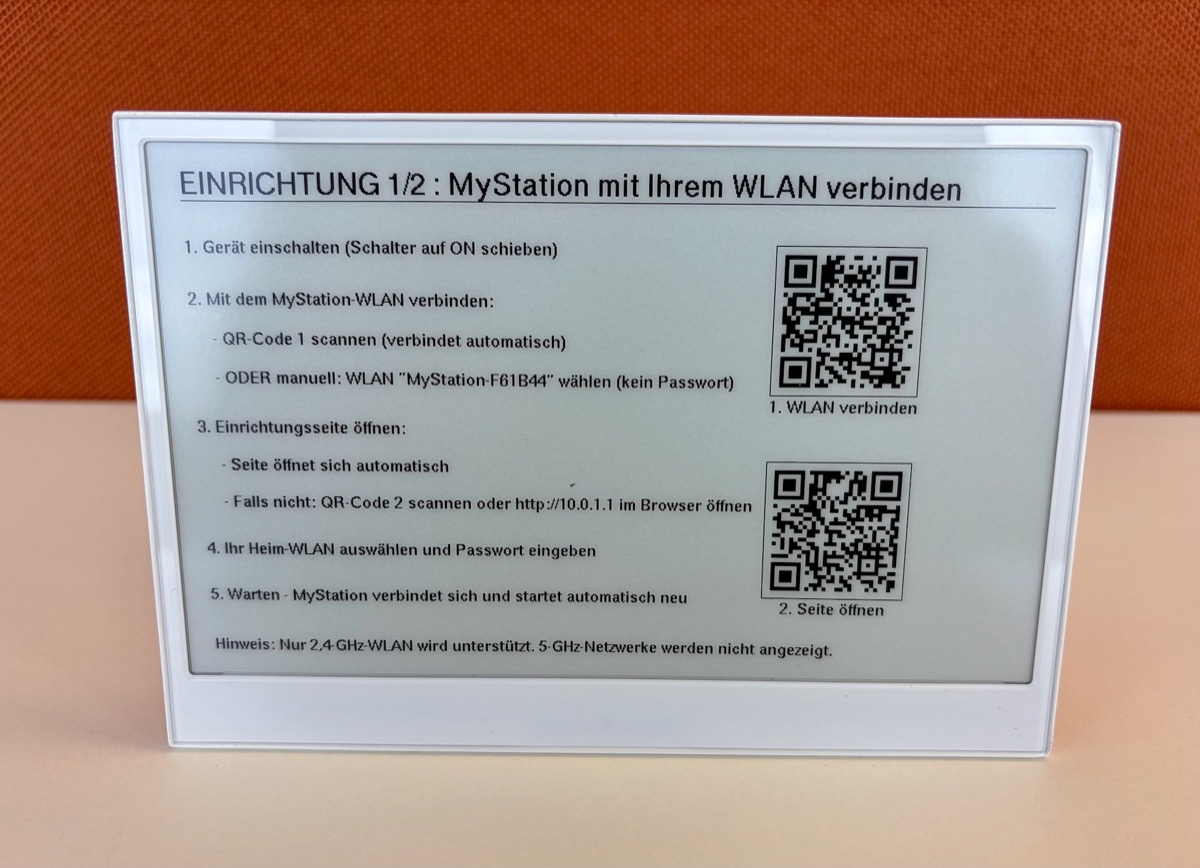
Step 3: Configure WiFi
- Select your home network from the list
- ⚠️ Make sure it is a 2.4 GHz network
- Enter your WiFi password
- Click "Connect"
💡 After WiFi connection, the configuration page will automatically reload at the device's new IP address.
Step 4: Configure the App (2 Minutes)
MyStation-Go will:
- Connect to your home network
- Automatically detect your approximate location
- Find nearby public transport stops
- Connect to your home network.
- Enter the IP address shown on the MyStation-Go display or
http://mystation.localin your browser.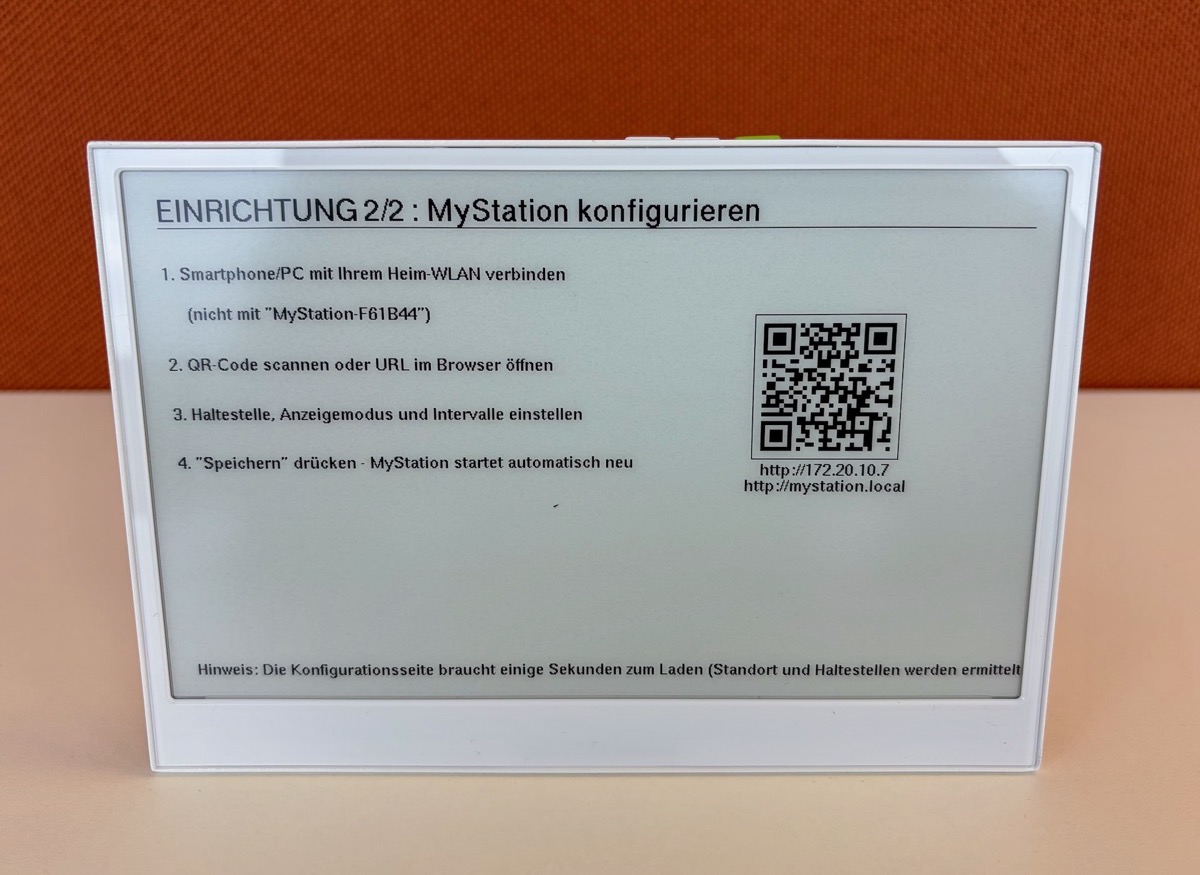
- Configure the app settings on the page. All settings are saved when you click "Save Settings".
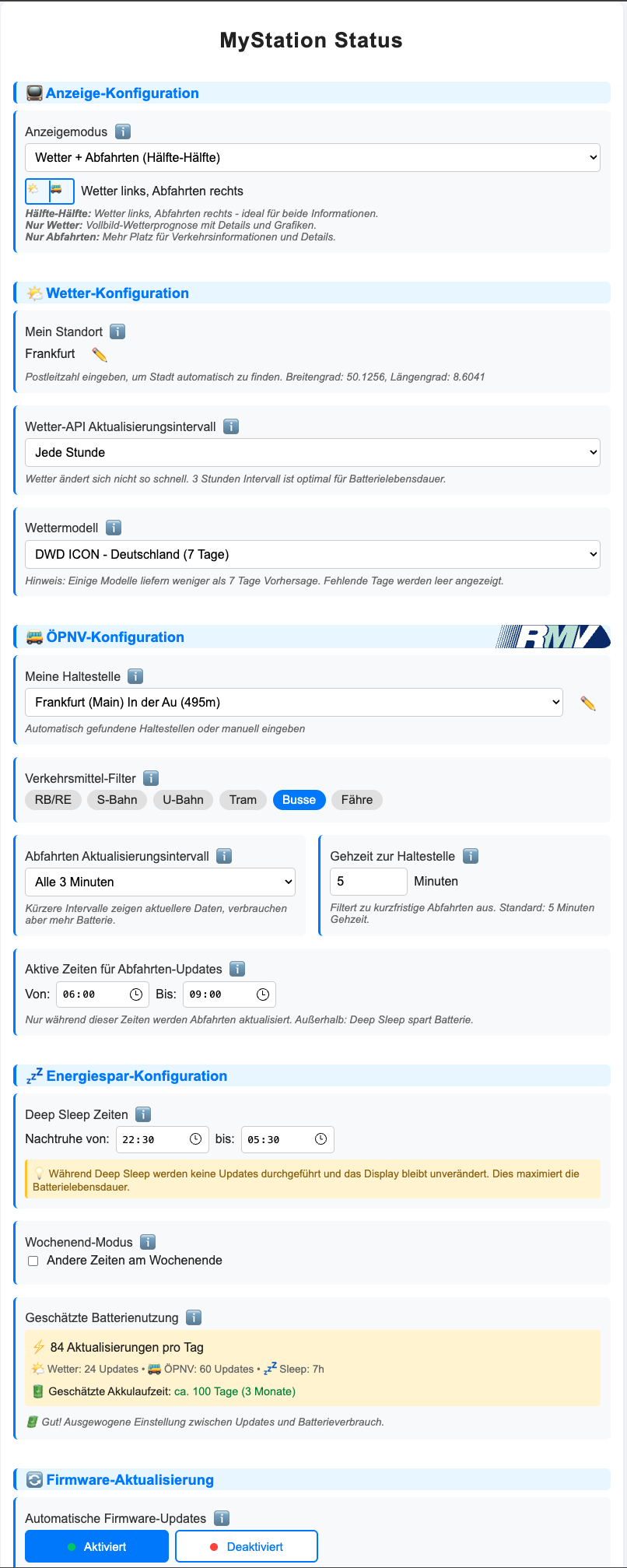
Display Mode
Choose what is shown on the screen:
- Half & Half — Weather on the left, departures on the right
- Weather Full Screen — Detailed weather on the entire screen
- Departure Full Screen — Departure board on the entire screen
Location / Weather
- Check the automatically detected location on the page
- If it looks correct, leave it as is — this gives you the most accurate weather for your location
- If it's wrong, enter your city or town name manually
💡 Automatically detected coordinates are more accurate than a city name. A city name uses the geographic center of the city, which can be several kilometers from your actual location. More details: Settings Overview
Stop
- Look at the list of nearby stops — sorted by distance
- Select your preferred departure stop
- Choose the transport types to display (RE, S-Bahn, Bus, Tram, etc.)
Update Intervals
- Weather interval: How often weather data is updated (default: 3 hours)
- Departure interval: How often departure data is updated (default: 5 minutes)
Quiet Hours (Recommended)
Set quiet hours to save battery overnight. Example: Sleep from 22:30 to 05:30.
Save
Click "Save Settings". MyStation-Go saves all settings and restarts automatically.
Step 6: Ready! 🎉
After restarting, MyStation-Go fetches data and updates the display. You should see:
- 🌤️ Current weather information
- 🚌 Next departures from your chosen stop
- ⏰ Last update timestamp
- 🔋 Battery level
Need to Reconfigure?
Hold the green button for 5 seconds to enter configuration mode at any time. All previous settings will be preloaded. More details: Change Settings
Common First-Time Setup Issues
"Can't connect to MyStation-Go WiFi"
- Wait 30–60 seconds after powering on — the device needs time to start
- Make sure your phone isn't set to "5 GHz only"
"WiFi connection failed"
- ✅ Check that your WiFi password is correct (case-sensitive)
- ✅ Make sure your network is 2.4 GHz
- ✅ Your network must not require a browser login (captive portal)
"No nearby stops found"
- ✅ Check that there is an internet connection
- ✅ You must be in an area covered by RMV
More help: Help & Troubleshooting